




Introduction: The Psychology of the First Impression
Automate Client Onboarding with AI | When a new client signs a proposal or pays your initial invoice, the clock starts ticking. The next 24 to 48 hours are the most critical period in your entire working relationship. This window is where “Buyer’s Remorse” either sets in or is completely eradicated.
If you delay sending a welcome email, gathering specific project details, or setting up their shared communication channels, it immediately creates friction. Your client starts wondering, “Did I hire the right person? Are they too busy for my project?”
But what if all of this happened instantly, flawlessly, and entirely in the background while you sleep?
Welcome to the Autifyai standard of business operations. In 2026, relying on manual data entry is a competitive disadvantage. In this comprehensive masterclass, we will build a flawless, intelligent system. We will create a workflow where a single form submission automatically generates a customized project scope using AI, builds structured Google Drive folders, and sends a highly personalized, dynamic welcome email.
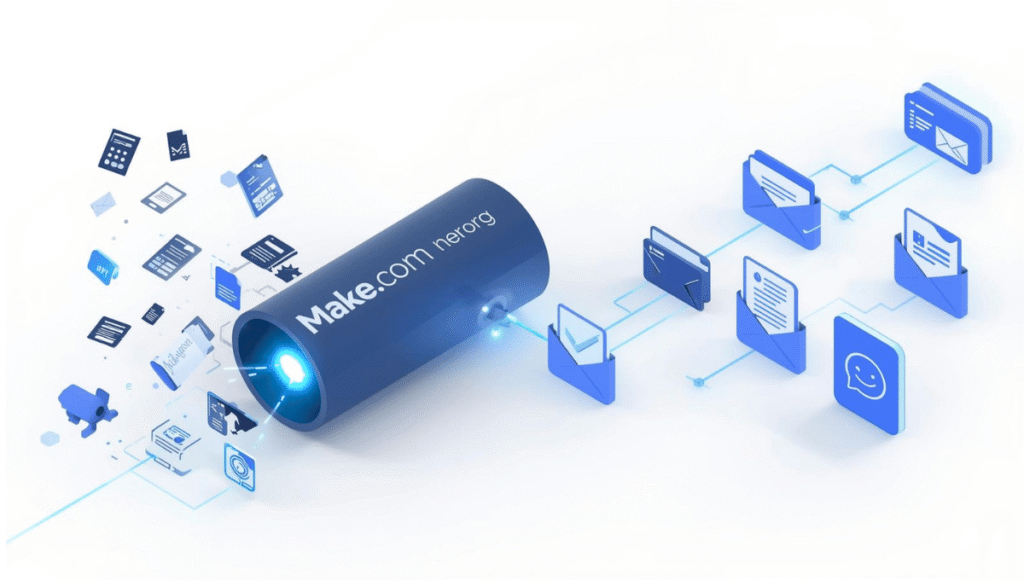
The best part? You don’t need to be a software engineer. We are building this entire ecosystem without writing a single line of code, utilizing the visual power of Make.com.
Chapter 1: The Anatomy of a Broken Onboarding Process
Before we build the solution, we need to understand the problem. Why do so many agencies and solopreneurs struggle with scaling? It usually comes down to the “Email Ping-Pong” bottleneck.
Let’s look at a real-world agency scenario. Imagine landing a high-paying client who needs a complex multi-vendor e-commerce website built on WordPress using the WCFM marketplace plugin.
In a traditional, manual onboarding process, the workflow looks like this:
- You send an email asking for the client’s hosting credentials and logo.
- The client replies with the logo but forgets the credentials.
- You reply asking for the credentials again, plus the vendor commission structures for the WCFM setup.
- The client sends the details in a disorganized Word document.
- You spend 45 minutes manually creating Google Drive folders, copying the data into a project management tool, and typing out a “Project Scope” document to ensure you are both on the same page.
By the time the actual work begins, you have wasted hours on administrative tasks, and the client is already fatigued by the back-and-forth communication.
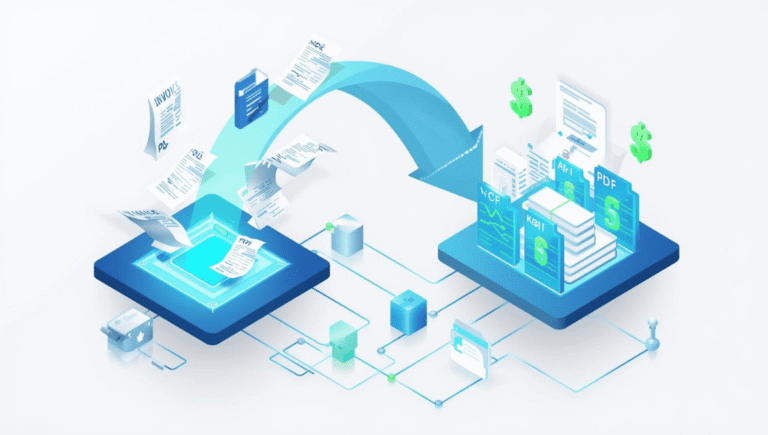
The Automated AI Solution: Instead of the mess above, the client fills out one beautifully designed intake form. Instantly, an AI analyzes their answers, structures the WCFM e-commerce requirements into a formal scope of work, creates a secure folder named after their company, drops the scope document inside, and emails them the link with a warm welcome. Zero hours wasted. 100% professional execution.
Chapter 2: The Autifyai Tech Stack Deep Dive
To build this seamless onboarding workflow, you will need four core tools. This specific stack has been chosen for its cost-effectiveness, reliability, and ease of integration.
1. The Intake Form: Typeform, Gravity Forms, or Google Forms
This is the front door to your business. You need a tool that can capture text, file uploads (like logos), and multiple-choice answers.
- Budget Option: Google Forms (Free, but basic).
- Premium Option: Typeform (Highly conversational and looks premium).
- WordPress Option: Gravity Forms or WPForms (Excellent if you want to host the form directly on your Autifyai website).
2. The Automation Hub: Make.com
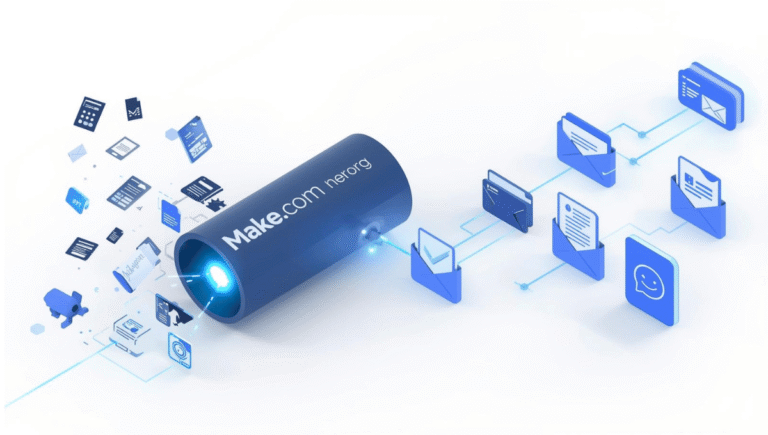
Make.com is the engine of our operation. It listens for the form submission and triggers the rest of the apps. We chose Make.com over Zapier because its visual drag-and-drop builder is superior for complex, multi-step AI workflows, and its pricing is much more friendly for scaling businesses.
3. The AI Brain: OpenAI (ChatGPT API) or Anthropic (Claude API)
This is where the magic happens. We aren’t just moving data; we are processing it. The AI will read the client’s raw, messy form answers and rewrite them into a polished, professional project summary and welcome email.
4. Storage & Communications: Google Workspace (Drive & Gmail)
We will use Google Drive to automatically spin up a dedicated project folder for the client, and Gmail to dispatch the final onboarding package.
Chapter 3: Step-by-Step Make.com Workflow Build
Open a new tab, log into your Make.com account, and let’s start building your first autonomous workflow.
Step 3.1: Set the Trigger with Your Intake Form
First, ensure your intake form is live. It should ask essential questions:
- Client First & Last Name
- Company Name
- Client Email Address
- Project Description (What are we building/doing for you?)
- Key Deliverables Expected
Now, head to Make.com and create a new Scenario.
- Click the giant purple “+” button in the center of the screen.
- Search for your form app (e.g., Google Forms).
- Select the trigger action: “Watch Responses”.
- Connect your Google account and select the specific spreadsheet where your form responses are being saved.
Step 3.2: Let AI Process the Data (The Magic Step)
If we just sent the raw form data to the client, it would look like an automated robot message. We want to sound like a boutique agency. Let’s add AI.
- Click the “+” icon next to your trigger module and search for OpenAI (ChatGPT).
- Select the action: “Create a Prompt completion”.
- Connect your OpenAI API key (found in your OpenAI developer dashboard).
- Select the Model: gpt-4o (or gpt-3.5-turbo if you are strictly minimizing API costs).
- The Prompt Engineering: This is crucial. In the “Messages” section, define the System Role as “Expert Project Manager”. Then, in the User Message, you will write your prompt and map the data variables from Step 1.
Copy and Paste this Exact Prompt into Make.com:
“You are a world-class project manager at a premium digital agency. A new client has just submitted their onboarding form. Please write a warm, highly professional welcome email. > Here is the client’s data: Client Name: [Map the ‘Name’ variable from your form here] Company: [Map the ‘Company’ variable here] Project Details: [Map the ‘Project Description’ variable here]
Instructions for the output: 1. Start with a warm welcome addressing the client by name. 2. Write a brief ‘Project Scope Summary’ interpreting their project details into 3-4 professional bullet points. 3. Let them know their dedicated Google Drive folder has been created and the link is below. 4. Keep the tone confident, reassuring, and premium. 5. Do not include subject lines in the output, just the email body.”
Step 3.3: Automate Client Folders in Google Drive
Now that our AI has written the perfect email, we need a place to store the client’s future files.
- Add a new module and search for Google Drive.
- Select the action: “Create a Folder”.
- Choose the main parent folder in your Drive (e.g., “Active Clients 2026”).
- For the New Folder Name, map the [Company Name] variable from your very first form module.
Now, every time a form is submitted, a perfectly named folder (e.g., “Stark Industries – Web Project”) is generated instantly.
Step 3.4: Send the Automated Welcome Email
It is time for the grand finale. We have our AI-generated text and our Google Drive folder link. Let’s send it to the client.
- Add a Gmail module to the end of your scenario.
- Choose the action: “Send an Email”.
- To: Map the [Client Email] variable from your intake form.
- Subject: Write something manual but dynamic, like: “Welcome to Autifyai, [Map Client Name]! Next Steps Inside.”
- Content (Body): Here, you will map two things. First, map the [Result/Message Content] output from your OpenAI module (this is the AI-written email). Two lines below that, type “Access your project files here:” and map the [WebViewLink] variable from your Google Drive module.
Chapter 4: Advanced Workflow Upgrades (Leveling Up)
Once you have the basic four-step workflow running, you are already ahead of 90% of your competition. But at Autifyai, we believe in pushing systems to their absolute limit. Here are three ways you can expand this scenario later:
1. The Slack/Discord Notification: Add a “Slack” module running parallel to the Gmail module. Have it send a ping to your team channel: “🚨 New Client Alert! [Company Name] just onboarded. Estimated value: $X,XXX.” This keeps your team energized and informed without you having to announce it manually.
2. Automated Contract Generation: Using a tool like DocuSign or PandaDoc, you can add a module that takes the AI-generated project scope, injects it into a PDF contract template, and emails it to the client for a legally binding digital signature.
3. The Project Management Sync: Add a module for Notion, Trello, or ClickUp. When the form is submitted, Make.com can automatically create a new project board, assign tasks to your designers or developers, and set due dates based on the current date.
Chapter 5: Why Make.com and Not Zapier in 2026?
If you have been in the tech space for a while, you might be asking, “Why aren’t we using Zapier?” Zapier is a fantastic, beginner-friendly tool, but for AI-driven business automation, Make.com is the clear winner for three reasons:
- Visual Logic: Make.com looks like a mind-map. When you start building complex branching logic (e.g., “If the client’s budget is over $5k, send them to the VIP pipeline; if under $5k, send them an automated consulting guide”), Make’s visual router makes it incredibly easy to see the flow of data.
- Cost at Scale: Zapier charges you per “Task” (every time a step runs). Make.com charges per “Operation”. When you are running massive AI workflows with 10+ steps, Zapier’s pricing quickly becomes a major overhead expense for a small agency. Make.com’s base tier gives you significantly more volume for a fraction of the cost.
- Iteration Speed: Make.com allows you to run specific modules independently during testing, which makes debugging AI prompts much faster.
Chapter 6: Troubleshooting & Common Errors
When building your first AI automation, you might hit a few bumps. Here are the most common issues and how to fix them instantly:
Error 1: The AI Output looks like code (JSON) instead of normal text. Fix: In your Gmail module, make sure you are mapping the specific text variable from OpenAI (usually called Message -> Content or Result), not the entire raw output array.
Error 2: Make.com says “BundleValidationError”. Fix: This means one of your mapped variables is empty. For example, if your form didn’t make the “Company Name” field mandatory, and a client leaves it blank, Google Drive won’t know what to name the folder. Always ensure critical fields in your intake form are marked as “Required.”
Error 3: OpenAI API quota exceeded. Fix: OpenAI requires a billing method on file to use their API, even if the cost per run is literally pennies. Log into your OpenAI developer account, add a card, and set a strict limit of $5/month to be safe.
Conclusion: Scale Your Mind, Automate the Grind
Automating your client onboarding isn’t just a fun tech experiment; it is a fundamental shift in how you operate as a business owner. It is the transition from working in your business (typing emails, creating folders) to working on your business (designing systems, closing bigger deals).
When your administrative tasks are handled instantly by AI, you reclaim hours of deep work time. Furthermore, your clients receive a white-glove, premium experience that builds massive trust from day one. While your competitors are stuck manually typing out welcome emails on a Saturday night, your Autifyai system will be busy scaling your revenue.
Don’t wait. Sign up for a free account on Make.com today, map out your first form, and experience the magic of zero-touch onboarding.