





Introduction: The “Lost in Slack” Dilemma
Automated Content Approval Workflow | When my digital agency started scaling, our content output skyrocketed. We went from publishing one article a week to managing a team of five freelance writers submitting multiple drafts daily.
I thought more writers meant faster growth. Instead, it created an absolute administrative nightmare.
Our editorial process looked like this: A writer would finish a draft and drop the Google Doc link into a crowded Slack channel. The link would get buried under other messages. Two days later, the writer would follow up. I would eventually find the document, review it, leave comments, and ping them back. Once they made the edits, I had to manually copy the text, log into WordPress, format the headers, upload the featured image, and hit publish.
The actual writing took 3 hours. The approval and publishing process took 3 days.
I was the ultimate bottleneck in my own business. I realized that if I wanted to scale an agency without losing my mind, I needed to remove humans (specifically, myself) from the data-transfer process.
That is when I engineered a zero-code, Automated Content Approval Workflow. By combining Google Docs, Slack, Make.com, and WordPress, I built a system where I can approve an article with a single click on my phone, and it instantly formats and publishes itself.
In this Autifyai masterclass, I am going to show you exactly how to build this editorial machine.
The Anatomy of an Autonomous Editorial Pipeline
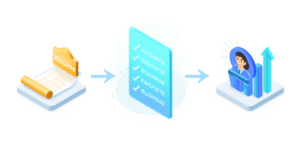
Before we build the system, we need to define the logic. A true automated approval workflow doesn’t just notify you; it waits for your human decision and then executes a branching path based on your choice.
The Dream Workflow:
- Submission: The freelance writer moves a task to “Ready for Review” in Notion or submits a simple form.
- The Ping: Make.com instantly sends a clean, formatted message to the Editor’s private Slack channel.
- The Decision (Interactive Buttons): The Slack message contains two actual clickable buttons: [Approve & Publish] or [Needs Revisions].
- The Execution:
- If Approved: Make.com grabs the Google Doc text, logs into WordPress via API, formats the HTML, and sets the post to “Draft” or “Published.”
- If Rejected: Make.com automatically emails the writer telling them to check the document comments for revisions.
The Autifyai Tech Stack
To build this interactive pipeline, we will use the following tools:
| Tool | The Role in the Workflow |
| Notion / Airtable | The database where writers submit their finished Google Doc links. |
| Make.com | The powerhouse that handles the routing, logic, and API connections. |
| Slack | The command center where the Editor clicks the interactive approval buttons. |
| WordPress | The final destination for the approved content. |
Step-by-Step Build: Creating Interactive Slack Approvals in Make.com
Building interactive buttons in Slack used to require complex coding and server webhooks. With Make.com, we can do it visually.
Step 1: Triggering the Workflow (The Writer’s Submission)
First, we need to know when a draft is ready. I use Notion to manage my writers.
- In Make.com, create a new Scenario.
- Add the Notion module.
- Select Action: “Watch Database Items”.
- Set it to watch your ‘Content Calendar’ database specifically for when a status changes to “Ready for Editor Review”.
Step 2: Sending the Interactive Slack Message
This is where the magic happens. We aren’t just sending a text message; we are sending a message with built-in buttons.
- Add a Slack module.
- Select the action: “Create a Message”.
- Map the basic text: “🚨 New Draft Ready for Review! Title: [Map Title from Notion]. Link: [Map Google Doc Link].”
- The Secret Sauce (Interactive Components): Scroll down in the Slack module settings to the “Attachments” or “Blocks” section. Add an interactive button block.
- Create two buttons. Name the first one “Approve” (Value:
approved) and the second one “Reject” (Value:rejected).
Step 3: The “Wait for Webhook” Pause
Make.com works incredibly fast. If we don’t tell it to stop and wait for you to actually click the button in Slack, the workflow will just end immediately.
- You need to set up a Custom Webhook in Make.com that listens for the Slack button click. (When you click a button in Slack, Slack sends a tiny packet of data—a webhook—back to Make.com with your decision).
- Add a Router module after this webhook. A router allows the workflow to split into two different paths based on conditions.
Step 4: Path A — The “Approved” Execution (Auto-Publish to WordPress)
If you clicked the green “Approve” button in Slack, this path triggers.
- Set the Router filter to only continue if the Webhook value equals
approved. - Add a Google Docs module (Action: Get Content). Map the document link from Step 1 so Make.com can read the text.
- Add a WordPress module.
- Select Action: “Create a Post”.
- Map the Title from Notion. Map the Content from the Google Docs module. Set the Post Status to “Draft” (or “Publish” if you are feeling brave!).
Step 5: Path B — The “Rejected” Execution (Back to the Writer)
If you clicked the red “Reject” button, this path triggers.
- Set the Router filter to only continue if the Webhook value equals
rejected. - Add a Gmail module (Action: Send an Email).
- Map the writer’s email address. The body should say: “Hi [Writer Name], your draft for ‘[Article Title]’ needs a few revisions. Please check my comments in the Google Doc and resubmit.”
- Add a Notion module (Action: Update Database Item) and automatically change the status back to “In Progress.”
Advanced Upgrades: Adding AI to the Mix
Once you have the basic approval routing set up, you can supercharge this workflow by injecting AI into the pipeline before you even read the draft.
The “AI Copy Editor” Step:
Between Step 1 (Notion Submission) and Step 2 (Slack Notification), add an OpenAI (ChatGPT-4o) module.
- Have the AI read the Google Doc first.
- Give it a prompt: “Check this article for basic grammar, passive voice, and ensure the tone is highly professional. Give the article a ‘Readability Score’ out of 100.”
- Now, when the Slack message pings you with the approval buttons, it also includes the AI’s Readability Score. If the AI gives it a 40/100, you can hit “Reject” without even opening the document, saving you even more time.
Conclusion: Reclaim Your Editorial Control
Scaling an agency or a massive niche blog requires extreme operational efficiency. Every time you manually copy text from a Google Doc, format headings in WordPress, or chase a freelancer on Slack, you are leaking profit and burning your own time.
By implementing an automated content approval workflow, you centralize your entire editorial process. You transform your Slack app into a remote control for your business. Writers get instant feedback, formatting errors disappear, and you can approve a week’s worth of content while standing in line for a coffee.
Stop being the bottleneck in your own publishing pipeline. Create your free Make.com account today, build your interactive approval buttons, and cut your editorial time in half.